

16 min read · Updated: 2026-11-28
Yes, some wireless cameras can record or detect motion without internet, but their offline abilities depend on the model and its storage method. A camera may keep saving clips to a memory card or local recorder while remote viewing, cloud storage, and alerts to your phone stop working. Check whether the features you need work on your home network alone.
“Wireless” usually describes how a camera connects or receives power; it does not guarantee internet-free operation. Some models use Wi-Fi for video and still need a router, while others need an internet connection for setup, account access, or cloud recording.
Use this guide to separate Wi-Fi, internet access, and local recording, then compare camera and storage options. Before buying, verify the manufacturer’s offline feature list and test what happens if the internet connection drops.
- Wireless describes power or connection, not guaranteed internet-free operation.
- Local cards and recorders may keep saving footage during an internet outage.
- Remote viewing, cloud uploads, and online alerts commonly need internet access.
- Check offline recording, playback, and reconnection behavior before buying.
What “wireless” means for a security camera
Power and connection are different
A wireless camera may use Wi-Fi to send video while still needing a power cable or rechargeable battery. “Wireless” does not tell you whether recordings stay on the camera, whether a router is required, or whether remote features work offline. Check the product’s power and connectivity specifications as separate items.
For example, a mains-powered camera can lose its network connection but continue running, while a battery model may conserve power by recording only when it detects activity. Some cameras connect to a home router over Wi-Fi; others communicate with a nearby hub. These differences affect what remains available during an internet outage.
If you publish a practical camera setup guide, guest posting services uk may help you share useful advice with readers who are choosing compatible devices. For buyers, the essential distinction is simple: wireless describes a connection or power arrangement, not a promise of full offline operation.
- Check the power source.
- Identify the camera’s network connection.
- Confirm where recordings are stored.
Router access versus internet
A router can keep devices connected inside your home even when its internet service is down. If a camera and viewing device can communicate locally, you may still see a live feed or manage recordings on the home network. Whether that works depends on the camera’s design and its companion app.
A camera that relies on remote servers may behave differently: the app could fail to connect even though the camera remains on Wi-Fi. This is common when login, video processing, or storage depends on a cloud service. Look for explicit details about local viewing and offline access rather than assuming Wi-Fi is enough.
Test these terms separately when comparing models: Wi-Fi connection, local network access, and internet connection. A product may require the internet for initial setup but continue recording locally afterward, or it may need regular cloud access to function. The manual or support documentation should explain which case applies.
How cameras connect and save recordings
Follow the video path
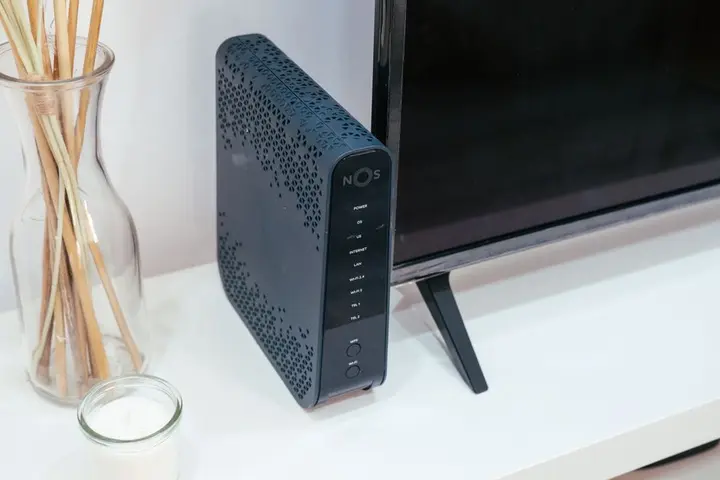
A camera’s video may travel to a phone, a hub, a recorder, or a cloud service, and that route determines what an internet outage interrupts. A camera sending footage to a local recorder can keep saving without outside access, provided the local connection and power remain available. A cloud-dependent model cannot upload new clips while offline.
A guest post marketplace may help a camera reviewer find publishing opportunities while comparing connection options; the practical buyer question is still where each video stream goes. Check whether the camera communicates directly with your phone on the home network, sends footage through a hub, or uploads it to an online account.
Do not confuse live viewing with recording. A camera might continue saving motion clips locally even when its app cannot show a live feed remotely. Conversely, a live view may work on the home network while clips are not saved because the camera’s chosen storage service is unreachable.
Know where clips go
Storage location is a key part of offline performance. A memory card stores footage inside the camera, while a network video recorder keeps footage on a separate device in the home. Cloud storage places recordings on remote servers, so uploading and retrieving clips generally require an internet connection.
Each option has trade-offs beyond connectivity. A card is physically close to the camera and may be lost or damaged with it; a recorder can centralize footage but adds another device to maintain. Cloud recording can make clips accessible remotely, but confirm how the service handles outages and whether recordings are retained locally too.
Read the storage specifications for event clips, continuous recording, and playback, not just the phrase “local storage.” Some models save only motion events, and others require a hub or subscription for particular functions. If the product page is unclear, ask whether recording continues and how you retrieve footage when the internet is disconnected.
- Memory card: footage stored in the camera.
- Local recorder: footage stored on a home device.
- Cloud: footage stored remotely.
Camera types and storage options
Compare storage methods
Choose a storage method by deciding whether local recording, remote playback, or keeping footage separate from the camera matters most. A camera with a memory card can store clips on-site, while a recorder can collect footage from compatible cameras. Cloud storage is convenient for remote access but relies on an internet connection to upload.
- Local storage can keep recording during an internet outage.
- Cloud recording needs internet access to upload footage.
- Confirm playback access as well as recording.
Creators producing sponsored camera comparisons can use buy sponsored posts to place their work with relevant publishers; for shoppers, the useful comparison is how each storage method behaves offline. Confirm whether the camera supports recording without a subscription, and whether playback remains available through a local app or recorder.
Check practical limits as well as the storage label. Find out whether the camera records continuously or only after motion, how footage is overwritten when storage fills, and whether the storage device can be removed. These details affect what evidence remains available after an outage or if the camera itself is damaged.
- Choose a card for storage inside the camera.
- Choose a recorder to collect footage locally.
- Choose cloud storage for internet-based access.
| Storage method | Offline recording | Main consideration |
|---|---|---|
| Memory card | Possible if supported | Stored inside camera |
| Local recorder | Possible on home network | Requires compatible recorder |
| Cloud storage | Cannot upload offline | Remote access needs internet |
Match camera to storage
Not every camera works with every storage method, so verify compatibility before choosing a setup. Some models have a card slot, some depend on a dedicated hub or recorder, and others offer cloud recording as their main option. Check the specifications for the exact recording modes supported by the camera you plan to use.
A single camera with local card storage may suit a small area where keeping clips on-site is the priority. A recorder can make sense when several compatible cameras need a shared destination. If you want to review footage away from home, confirm what internet access and account features that remote playback requires.
Ask how storage behaves when a connection drops, when the device restarts, or when capacity is full. A camera may resume recording automatically, pause until it reconnects, or overwrite older clips, depending on its settings. Knowing the default behavior helps you judge whether the system fits your home and monitoring routine.
Without internet, features that depend on remote servers may stop: viewing a live feed away from home, cloud uploads, and alerts delivered through an online service.
What stops working without internet

Remote features may disappear
Without internet, features that depend on remote servers may stop: viewing a live feed away from home, cloud uploads, and alerts delivered through an online service. A camera may still detect motion or save locally, but the phone may not receive a notification until service returns. Check which functions the manufacturer says operate offline.
If you publish a guide to camera connectivity, cheap press release distribution may help announce it to interested readers; for camera owners, the key is knowing which alerts rely on internet access. Test notifications while connected and understand what the camera does when delivery fails, rather than relying on an alert as the only record of activity.
Voice assistant integrations and remote account controls may also be unavailable if they depend on cloud access. Local controls can remain usable on the home network, but this varies by model. Review the feature list for explicit offline support, especially if you expect to arm, disarm, or change settings during an outage.
Separate outage symptoms
When a camera appears offline, identify whether the internet, router, power, or camera itself has failed. An internet outage may leave local Wi-Fi and recording intact, while a router failure can break communication between the camera and a local recorder. A power cut can stop both the camera and network equipment unless they have backup power.
Check the camera’s status indicators and local app access before changing settings. If local viewing still works but remote viewing does not, the internet connection is a likely cause. If the camera cannot be reached inside the home, inspect its power and Wi-Fi connection, then check whether the router or recorder is operating.
After service returns, verify that the camera reconnects and resumes its usual recording schedule. Review the footage around the outage, because a device may not upload clips recorded locally until it reconnects—or may not preserve them at all. Keep a simple test routine so you know the actual behavior before an incident occurs.
- Check power to the camera and router.
- Try local access from the home network.
- Confirm recording resumes after reconnection.
Plan coverage, power, and privacy
Map the areas that matter
Decide what each camera needs to see before choosing its position. A front-door view may need to capture faces approaching, while a driveway camera should include the vehicle entrance without pointing into a neighbor’s windows. Sketch the views on a simple floor plan, then check for blind spots where walls, plants, or porch roofs block the lens.
- Mistake: placing a camera before checking for obstructions; better approach: test its view from the intended mount.
- Mistake: aiming at neighboring windows; better approach: frame your own property and enable privacy masking where available.
- Mistake: assuming a battery camera never needs attention; better approach: plan charging around its alerts and access.
Check the camera’s power needs at the exact location you have in mind. Battery models avoid nearby outlets but need recharging, while plug-in cameras require a protected cable route and a suitable socket. For outdoor installations, follow the manufacturer’s weather and mounting guidance; a camera rated for outdoor use still needs its connections protected as instructed.
Treat privacy as part of placement, not a setting to fix later. Aim cameras at your own entrances and shared areas you are entitled to monitor, and use privacy zones or masking if the app offers them. Smart-home publishers managing outreach for multiple clients may find white label link building useful when promoting camera guides.
Balance recording and privacy
Choose recording settings that capture useful evidence without collecting more footage than you need. Continuous recording can fill storage quickly, while motion-triggered recording may miss the beginning of an event if detection is poorly positioned. Test detection zones with ordinary activity, such as someone walking up the path, and adjust sensitivity to limit irrelevant alerts.
Review who can view live footage and recordings before sharing camera access with household members. Use individual accounts where supported, remove access when someone no longer needs it, and secure the main account with a strong, unique password. If the camera offers two-factor authentication, enable it to add a check beyond the password.
Check local rules before recording public spaces, shared entrances, or audio, because requirements differ by location. Tell household members and visitors when cameras are operating where appropriate, and avoid placing cameras in private spaces. A brief review of the camera’s privacy controls and the manufacturer’s data practices can clarify what stays local and what is uploaded.
For readers documenting a camera setup
Record the installation clearly
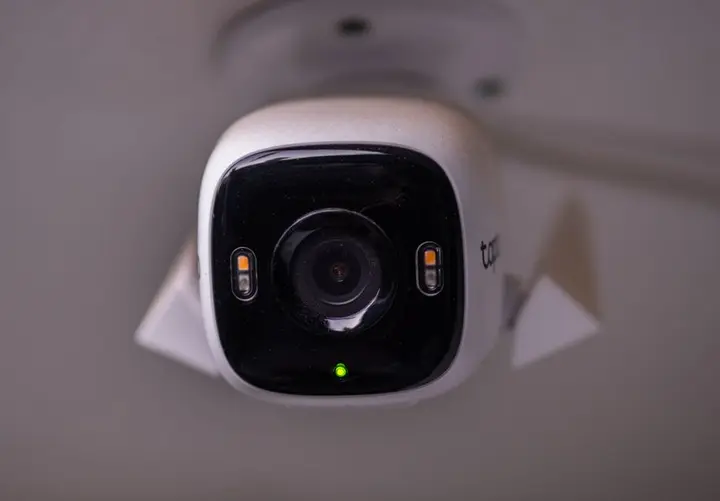
Document the camera’s position, power source, network connection, and recording method as you install it. A simple note such as “porch camera, wired power, local card recording” can make later troubleshooting much easier. Include a sketch or clear photos of the mounting position, but avoid sharing images that reveal passwords, access codes, or private views.
- Choose the camera position and confirm its power source.
- Connect the camera to the intended local network or hub.
- Set recording, detection, and privacy options.
- Test live view, alerts, and playback from the usual viewing device.
Test the camera from the place where you will actually check it, not only beside the router during setup. Confirm that live view loads, motion alerts arrive when expected, and saved clips play back through the chosen connection. A writer seeking marketing support to promote a camera installation guide can consult an seo agency directory.
Keep a short record of settings that affect day-to-day use. Note detection zones, notification preferences, recording schedules, and any privacy masking, then update the record after changes. This helps another household member understand the setup and gives you a baseline for spotting whether a reset or firmware update has changed the camera’s behavior.
Make useful reference material
Use photos to show practical details rather than just the finished camera. A shot of the mounting surface, cable route, or router and hub arrangement can explain why a particular location works. Remove or obscure personal details, including screens displaying account information, home addresses, or device identifiers, before sending or publishing images.
Write down what happens when the internet connection is unavailable, if you have safely tested it. Record whether local viewing, motion recording, and playback continued, and whether remote access or notifications stopped. Results depend on the camera and its local storage arrangement, so describe the exact model and setup rather than implying that every wireless camera behaves alike.
Store installation notes somewhere household members can reach without exposing account credentials. A shared household document can contain model names, purchase records, reset instructions, and support links, while passwords belong in a secure password manager. If you move the camera or change its network, update the notes so they remain useful instead of becoming a source of confusion.
Check compatibility before you buy
Match the camera to your setup
Check the camera’s network requirements against the equipment already in your home. Some models need a particular Wi-Fi band, while others require a hub or support a local connection that works differently from standard app-based setup. Read the product’s compatibility details and confirm that your router, phone, and preferred smart-home platform meet them.
Confirm what the camera can do without cloud access before relying on it for local monitoring. Look for explicit details about local recording, playback on the home network, and whether initial setup requires an online account. A camera that stores clips locally may still depend on its app or a cloud service for configuration, alerts, or remote viewing.
Check whether the camera can share useful events with the smart-home system you use. Compatibility may cover basic live viewing but not motion triggers, two-way audio, or automation controls, so verify the specific functions you expect. A publisher comparing camera-guide promotion options can use an seo agency directory to find marketing support.
Compare offline features carefully
Look beyond the phrase “local storage” and check how the camera accesses saved clips. Some models use a memory card in the camera, while others save to a recorder or compatible hub. Confirm whether playback works through a local network when the internet is down, and whether the storage device must remain powered.
Ask what happens after an outage or router restart. A camera may reconnect automatically, resume recording, or require a manual step; product documentation should explain its behavior. If a feature depends on the manufacturer’s servers, internet loss can interrupt it even when the camera remains powered and connected to your home network.
Consider how updates and support affect a camera you plan to keep for years. Check whether security updates are delivered over the internet, whether the product can be configured without an account, and what happens if its app or service changes. These details help distinguish a genuinely useful local setup from one that merely stores clips locally.
Keep the system reliable over time

Build a simple maintenance routine
Check the camera’s view and recording status periodically, especially after moving furniture, trimming plants, or changing the router. A live image can look normal even if motion recording or storage has stopped, so play back a recent clip as part of the check. Correct small problems early, before you depend on footage you cannot retrieve.
Keep lenses clean using the method recommended by the manufacturer, and inspect outdoor mounts and exposed cables for movement or damage. Dirt, condensation, and a shifted bracket can make a camera less useful without causing an obvious app error. For battery-powered models, review charge warnings and make sure you can reach the camera safely when it needs attention.
Apply security updates when available and review account access after household changes. Remove old users, replace weak or reused passwords, and check that alerts still go to the right devices. Keep a record of the current network and settings so you can restore the intended setup after a reset, router replacement, or camera relocation.
Prepare for network interruptions
Know which functions can continue locally before an outage occurs. If the camera supports local recording, test playback while your internet connection is unavailable but the home network remains active, following the manufacturer’s instructions. This separates an internet problem from a camera, router, power, or storage failure and makes later troubleshooting more direct.
Keep a practical fallback for essential views rather than assuming every notification will arrive. During an outage, remote access and cloud alerts may stop even if local recording continues, so check the camera directly when you are home. If a camera’s power supply depends on a circuit that can be switched off, account for that when planning coverage.
After service returns, confirm that the camera reconnects and that recording has resumed. Check a fresh clip, verify the displayed time, and make sure alerts are reaching the intended phone. If a device remains offline, restart equipment only in the sequence recommended by its manufacturer; repeated resets can erase settings or make diagnosis harder.
Frequently asked questions
Can I view a wireless camera on my phone without internet?
Sometimes, if your phone and camera can communicate over the same local network and the camera’s app supports local viewing. This does not automatically mean you can check the camera from elsewhere, because remote access usually needs an internet connection. Confirm the model’s local-viewing instructions and test them with your home internet disconnected before relying on this feature.
Will a wireless camera keep recording during an internet outage?
It may, provided it has power and a local recording option that does not depend on the manufacturer’s cloud service. A camera that saves only to cloud storage generally cannot upload new footage while its internet connection is down. Check the product documentation for outage behavior, then test a short recording and playback using your intended storage method.
Can a camera connect directly to my phone without a router?
Some cameras offer a direct or temporary device connection for setup or local use, but many need a router or hub to provide their normal functions. Direct connections may have limited range and may not support remote viewing, integrations, or continuous recording. Check the manufacturer’s instructions for the exact operating mode and what features remain available without a home network.
Does a wireless camera need power if it has no internet?
Yes. Losing internet does not remove the camera’s need for electricity, whether it uses a mains adapter, rechargeable battery, or another supported power source. A battery model may continue recording locally while offline, but only if its settings and storage support that behavior. Check battery status and power requirements separately from network requirements when planning an installation.
Choose for the connection you actually have
Wireless cameras can remain useful without internet, but their offline capabilities depend on power, local networking, storage, and the way each model handles viewing and recording. Before buying, confirm which functions continue during an outage, how you retrieve local clips, and whether setup requires a cloud account. Then place the camera for a clear, privacy-conscious view and verify its performance in the intended location.
Your next step is to shortlist models by the features you need rather than by the word “wireless.” Check compatibility with your router and smart-home platform, confirm the recording method, and test local playback after installation. Keep a brief record of the settings and repeat a playback check periodically; that small habit can reveal a problem before an important recording is needed.


